
TiviPlay

Author: TiviPlay Team

  • IPTV EPG guide: what the programme guide is and how to fix it

    IPTV EPG guide: what the programme guide is and how to fix it

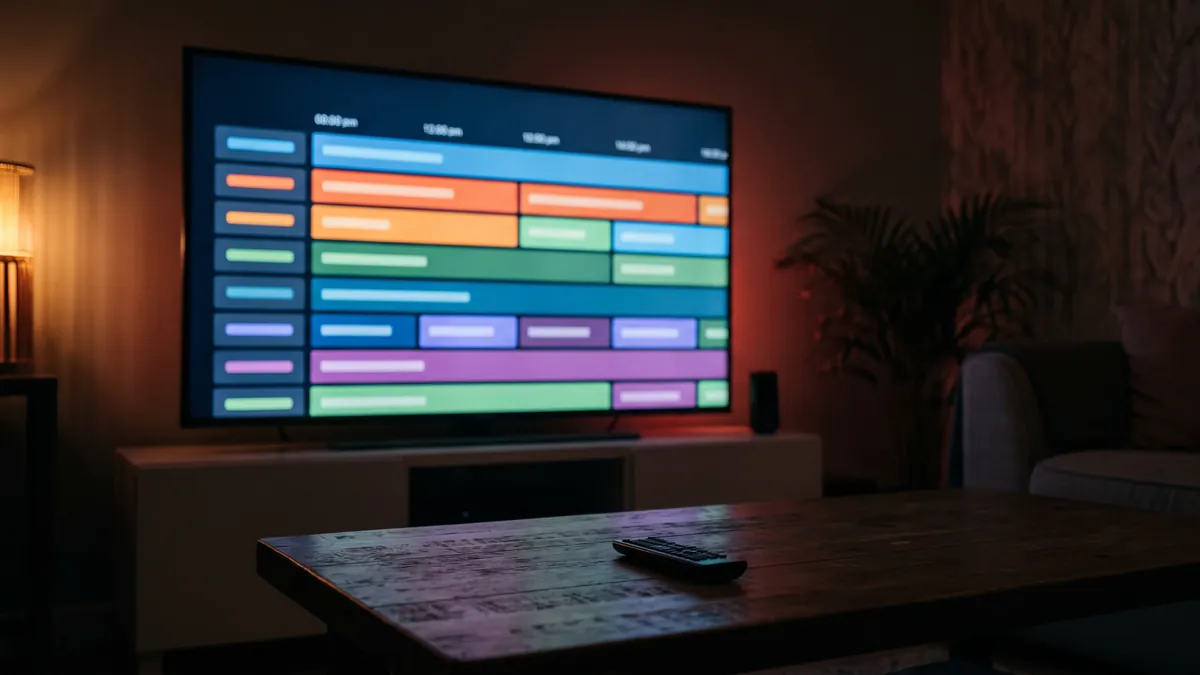
    EPG stands for Electronic Programme Guide, the grid inside your IPTV app that shows what is on now and next for each channel. When it is empty or wrong, a few simple checks usually fix it.

    Last updated: November 2026.

    How the EPG works

    Your player app downloads guide data and matches it to your channels. When the match is good you see titles and times. If a channel has no guide data, or the app has not finished loading, the guide looks empty.

    Why an IPTV guide goes wrong

    • First load not finished. The guide can take several minutes after the first login.
    • Time zone or clock wrong. Programmes appear at the wrong time.
    • Some channels have no guide data. Not every channel is covered.
    • Outdated playlist. The app is using an old list.

    Quick fixes

    1. Wait a few minutes after the first load, then reopen the app.
    2. Check the date, time and time zone on your device. Set them to automatic.
    3. Refresh the playlist or guide in the app settings.
    4. Restart the app and the device.
    5. Contact support with your device model and app name.

    App-specific help

    Steps differ slightly by app. See the TiviMate setup guide and IPTV Smarters Pro setup. Compare apps in best IPTV player apps.

    When the guide is fine but playback is not

    Buffering is a different problem. Read how much internet speed IPTV needs.

    Where EPG data comes from

    Guide data is usually supplied in a format called XMLTV. It lists channels, programme titles, descriptions and start and end times. Your player app downloads this data and links each programme to the right channel using a channel ID. With Xtream Codes logins, guide data often loads automatically. With an M3U playlist, the app may need a separate guide link.

    How to read the guide

    • The vertical list shows channels.
    • The horizontal timeline shows programmes now and later.
    • Selecting a programme shows its description and time.
    • Some apps let you set reminders or open past programmes where catch-up is available.

    EPG problems by app

    App Where to refresh the guide
    TiviMate Playlist settings, update the guide; see TiviMate guide
    IPTV Smarters Pro Settings, refresh or reload the guide; see Smarters guide
    Other players Look for EPG, TV guide or XMLTV in settings

    Time zone tips for Canada

    Canada spans six time zones. If programme times are off by a few hours, check that your device time zone matches where you are, for example Eastern for Toronto and Montreal or Pacific for Vancouver. Set the clock to automatic where possible, and check again after daylight saving time changes.

    When to contact support

    If the guide is still empty after a restart, a refresh and a time check, message support with your app name, device and one example channel. That is the fastest way to find the cause.

    What a good guide gives you

    • Now and next information at a glance
    • Programme descriptions so you can decide what to watch
    • A timeline to plan your evening
    • Faster channel surfing with fewer blind clicks

    Why some channels never show guide data

    Guide data is matched by channel ID. Some channels have no published guide at all, some regional or international channels use IDs that do not match, and some streams are events or special feeds that only exist for a short time. A few empty rows are normal. A completely empty guide is not.

    Step-by-step reset

    1. Note one channel that shows no guide.
    2. Check the device time and time zone.
    3. Refresh the guide in the app settings and wait a few minutes.
    4. Restart the app, then the device.
    5. If still empty, remove and re-add the playlist with the same details.
    6. Contact support with the channel name and app name.

    Related guides

    What is IPTV, M3U vs Xtream Codes and best IPTV player apps.

    How the guide connects to your channels

    Every channel in your playlist carries an identifier. The guide data uses the same identifiers to say which programme belongs to which channel. When the identifiers match, your app fills the grid automatically. When they do not, the channel still plays but shows “No information” in the guide. Providers usually keep these matched, which is why most channels show programmes and only a few may be blank, for example temporary event channels or channels without published schedules.

    EPG with Xtream Codes vs M3U

    Xtream Codes login M3U playlist
    Guide source Usually supplied automatically May need a separate guide link
    Setup effort Low Medium
    Updates Refresh from the app Depends on the guide link
    Best for Most people Advanced users and simple players

    If your guide never loads with an M3U playlist, ask your provider whether they offer Xtream Codes details instead. Read M3U vs Xtream Codes for the full comparison.

    Guide features worth using

    • Reminders: some apps can alert you when a programme starts.
    • Search: find a show by name across all channels in the guide.
    • Catch-up: where a channel supports it, replay programmes that already aired.
    • Favourites view: show the guide for your favourite channels only, which loads faster and is easier to read.

    Keeping the guide accurate over time

    Programme schedules change, especially for live sport and news. Set your app to refresh the guide at least once a day. After daylight saving time changes in March and November, check that programme times still line up. If they are off by exactly one hour, your device time settings are the usual cause, not the guide data.

    When the guide is not the real problem

    Sometimes people think the guide is broken when the channel itself has stopped. If the guide shows a programme but the channel will not play, try another channel. If several channels fail, the issue is the stream or your connection. See internet speed for IPTV.

    A note on time-shifted viewing

    Some guides show a small icon on channels that support catch-up. Selecting an earlier programme on those channels lets you watch it after it aired. Support differs by channel and service, and the number of days available varies. If your app shows the option but playback fails, that channel may not support catch-up at that moment.

    Make the guide easier to read

    A full guide with hundreds of channels can feel overwhelming. Most apps let you hide categories and show only favourites in the guide view. Start with ten to twenty channels you actually watch. You will scroll less, the guide will load faster on older devices, and the whole family will find their programmes more easily. You can always add more channels later.

    Key takeaways

    • EPG is the on-screen programme guide inside your IPTV app.
    • Empty guides are usually a loading or time-setting issue.
    • Xtream Codes logins usually load the guide automatically; M3U may need a guide link.
    • A few channels without guide data is normal.

    Frequently asked questions

    What does EPG mean?

    EPG means Electronic Programme Guide, the on-screen TV guide in your app.

    Why is my IPTV guide empty?

    Usually the first load has not finished or the time settings are wrong. Wait, then restart the app and check your device time.

    Why are programme times wrong?

    Check the time zone and time settings on your device.

    Does every channel have a guide?

    No. Some channels have no guide data.

    Next step

    See the TiviPlay plans in Canadian dollars, check compatible devices or follow our setup guide. Questions? Message us on WhatsApp, 24/7.

  • M3U playlist vs Xtream Codes: what is the difference?

    M3U playlist vs Xtream Codes: what is the difference?

    An M3U playlist is a link to a list of streams, while Xtream Codes is a login (server URL, username and password) that lets the app load channels, guide and on-demand titles in an organised way. Both do the same job: they tell your player app where the content is.

    Last updated: November 2026.

    What is an M3U playlist?

    M3U is a plain text playlist format. The provider gives you a link. You paste it into a player app and the app downloads the list of channels. It is simple and works in many apps and media players, including on computers.

    What is Xtream Codes login?

    Xtream Codes style login uses three things: a server URL, a username and a password. The app signs in and receives the channel categories, the programme guide and often the on-demand section in a neater structure than a single big list.

    M3U vs Xtream Codes at a glance

    M3U link Xtream Codes login
    What you enter One long link Server URL, username, password
    Channel organisation One list, sorted by the file Categories and sections
    Programme guide Depends on the file and app Usually loads more smoothly
    Best for Quick tests, simple players Daily use in player apps

    Which should you use?

    Use whichever your provider sent, and prefer Xtream Codes if both are offered and your app supports it. If one method fails, ask for the other.

    How to avoid common mistakes

    • Copy details exactly. A trailing space is the most common cause of login errors.
    • Include the full server URL, with the port number if your provider gave one.
    • Never share your link or login publicly. Anyone with it can use your plan.
    • After the first login, wait a minute for the list and guide to load.

    Step-by-step app guides

    See IPTV Smarters Pro setup and the TiviMate setup guide. Fix a missing guide in our EPG guide.

    What an M3U playlist looks like

    An M3U file is plain text. It starts with a header line and then lists each channel: a line with the channel name and details, followed by the stream address. Player apps read this list and turn it into a channel menu. You never need to edit it yourself.

    What happens when you log in with Xtream Codes

    With Xtream Codes details, the app connects to the provider’s server and requests the live channels, categories, on-demand sections and guide data separately. That is why the result usually looks more organised and why updates appear without you re-adding anything.

    Pros and cons

    M3U Xtream Codes
    Setup Paste one link Enter three details
    Works in Almost any player, including VLC Players that support Xtream login
    Categories Depends on how the list is tagged Usually built in
    Guide (EPG) May need a separate guide link Usually loads automatically
    Large libraries Can be slow to load Usually faster

    Common login errors and fixes

    Error Likely cause Fix
    Invalid login Typo or extra space Re-type details carefully
    Cannot connect Incomplete server URL or missing port Copy the full address your provider sent
    Empty list First load not finished Wait a minute and restart the app
    Guide missing No guide data matched See our EPG guide

    Can you convert between them?

    Usually you do not need to. Ask your provider for the format that suits your app. They can typically supply either an M3U link or Xtream details for the same subscription.

    Keep your details private

    Both an M3U link and Xtream details give full access to your plan. Do not post them online or share them outside your household.

    Which method works best on each device

    • Fire TV, Android TV, Google TV: Xtream Codes in TiviMate or IPTV Smarters Pro.
    • iPhone and iPad: whichever your chosen app supports; many support both.
    • Computers: M3U is easiest in general media players.
    • Smart TVs: depends on the apps available in your TV store.

    Quick decision guide

    If your provider gives you both, use Xtream Codes on your TV for the best guide and categories, and keep the M3U link as a backup for testing on a computer. If you only have one, use it. Both reach the same subscription and the same streams.

    Does the format change picture quality?

    No. Picture quality comes from the stream itself and your connection, not from whether you log in with M3U or Xtream Codes. If quality is poor in both, check your internet speed.

    A simple example

    Imagine your provider sends you three details: a server address, a username and a password. In IPTV Smarters Pro you choose the Xtream Codes option and type them in. In TiviMate you choose Add playlist, then Xtream Codes, and enter the same details. Both apps now show the same channels. If you instead received a single long link, you choose the playlist or M3U option in either app and paste it. The channels are the same either way, only the layout and guide loading may differ.

    What about MAC address logins?

    Some apps and set-top boxes use a third method where the app shows a device ID, often called a MAC address, and the provider links your subscription to that ID. It is common on certain Smart TV apps and older boxes. If your app asks for this, send the ID to your provider rather than typing a login.

    Troubleshooting flow

    1. Try the login method your provider recommends first.
    2. If it fails, check every character and the full server address.
    3. Restart the app, then the device.
    4. Ask your provider for the other format and test it.
    5. If neither works on any device, the issue is likely the account or the service, so contact support.

    Security and privacy of your login

    Whichever method you use, your login is the key to your subscription. Anyone who has your M3U link or Xtream Codes details can use your plan, which can push you over your device limit and interrupt your viewing. Store the details in a password manager or a private note, never in a public group chat or a social media post. If you think your details have been shared, ask your provider to reset them.

    Using both methods on different devices

    There is nothing wrong with using Xtream Codes on the living room TV and an M3U link in a media player on a laptop, as long as the total number of screens playing at the same time stays within your plan. Many people do exactly this: the TV gets the best guide and categories, while the laptop gets the simplest possible setup for occasional viewing.

    Glossary

    • Server URL: the address of the provider’s server, sometimes with a port number at the end.
    • Port: a number after a colon in the server address. Leave it in if your provider includes it.
    • Playlist: the list of channels your app loads.
    • EPG: the programme guide. See our EPG guide.
    • VOD: video on demand, the movies and series section.

    Which should a beginner choose?

    If you are new to IPTV and your provider offers both, choose Xtream Codes. It is three short fields instead of one long link, it is easier to type with a TV remote, and you get a cleaner layout from the start. Keep the M3U link as a backup.

    Key takeaways

    • M3U is one playlist link; Xtream Codes is a server URL, username and password.
    • Both reach the same subscription and the same picture quality.
    • Xtream Codes usually gives better categories and an automatic guide.
    • Keep both private; anyone with them can use your plan.

    Frequently asked questions

    Is M3U or Xtream Codes better?

    Xtream Codes often gives a neater layout. M3U is simple and widely supported. Use what your provider sends.

    Why is my M3U link not working?

    Check the full link was copied, with no spaces, and that your internet is stable. Ask your provider for a fresh link if it still fails.

    Can I use both methods?

    Usually you choose one per profile. Keep to the number of devices in your plan.

    Do player apps include a playlist?

    No. You add the one from your provider.

    Next step

    See the TiviPlay plans in Canadian dollars, check compatible devices or follow our setup guide. Questions? Message us on WhatsApp, 24/7.

  • How to choose an IPTV provider in Canada: 8 checks before you pay

    How to choose an IPTV provider in Canada: 8 checks before you pay

    To choose an IPTV provider in Canada, compare clear pricing in CAD, renewal terms, refund policy, support, device compatibility, honest claims, setup help and published terms. Use this checklist before you pay.

    Last updated: November 2026.

    1. Clear pricing in Canadian dollars

    You should see the price, the period and the number of devices before you order, with no surprise add-ons. TiviPlay shows every plan on the pricing page, from 1 to 12 months and for 1, 2 or 3 devices.

    2. No surprise renewals

    Ask whether the plan renews automatically and how to cancel. TiviPlay plans are billed once for the period you choose and do not auto-renew.

    3. A refund policy you can read

    A written policy with a clear time window shows a provider expects to be held to its word. Ours gives a 24 hour money back window after activation. Read the full refund policy.

    4. Support you can actually reach

    Test support before you buy. Send a question and see how long a real person takes to reply. TiviPlay support is on WhatsApp, 24/7.

    5. Device compatibility

    Check that your Smart TV, stick, phone or computer can run a player app. See compatible devices and compare apps in best IPTV player apps.

    6. Honest claims

    Be careful with providers that promise everything. Look for specific, verifiable information. Read is IPTV legal in Canada? for questions to ask about licences.

    7. Setup help

    Setup is where most people get stuck. A good provider helps. See our setup guide for what that looks like.

    8. Terms and privacy in plain language

    Terms and a privacy policy should be easy to find. Read ours: terms and privacy policy.

    Quick comparison table

    Check What good looks like
    Price Shown in CAD, per period, per device count
    Renewal Stated clearly; no hidden auto-renewal
    Refund Written policy with a time window
    Support Fast replies from a real person
    Claims Specific, checkable, not exaggerated

    Questions to ask before you pay

    1. What exactly is included in the price, and for how long?
    2. How many devices can I use at the same time?
    3. Does the plan renew automatically?
    4. What is your refund policy, and how do I ask for a refund?
    5. How do I contact support, and what hours do you answer?
    6. Which devices and apps do you recommend?
    7. Can you help me set up?

    A trustworthy provider answers these clearly and quickly, in writing.

    How much does IPTV cost in Canada?

    Prices vary widely between providers and depend on plan length and number of devices. Longer plans usually cost less per month. For reference, TiviPlay plans start at CA$19.99 for 1 month on 1 device, and 12 months on 1 device is CA$89, about CA$7.42 a month. See every option on the pricing page.

    Plan length What to expect
    1 month Highest monthly cost; good for a first test
    3 to 6 months Lower monthly cost; good once you are happy
    12 months Lowest monthly cost; best value for long-term use

    How many devices do you need?

    Count the screens that will play at the same time, not every device in the house. A couple who watch together on one TV need one device. A family where one person watches sport while another watches a film needs two.

    Test before you commit

    1. Start with a short plan if you are unsure.
    2. Test at peak evening hours, when networks are busiest.
    3. Try the channels and titles you care about most.
    4. Test on every device you plan to use.
    5. Contact support once to see how they respond.

    Warning signs

    • Huge channel numbers with no detail at all.
    • No written terms or refund policy.
    • No way to reach a real person.
    • Pressure to pay immediately.
    • Bold claims about legality with nothing to support them. See is IPTV legal in Canada?

    Setting up after you buy

    Most problems happen in the first hour. Use a cable connection where you can, pick one player app and follow a guide: IPTV Smarters Pro or TiviMate.

    Support: what good looks like

    Good support answers within a reasonable time, understands your device, and gives clear steps rather than copy-paste replies. Before you buy, send a specific question, such as which app they recommend for your TV model, and judge the answer. TiviPlay support is on WhatsApp, 24/7, and you can message us before ordering.

    Reading a refund policy

    • Look for the time window and when it starts, for example from activation.
    • Check how to ask, and what information you need to send.
    • Check whether setup help is offered before a refund is processed.
    • Make sure the policy is written down, not just promised in a chat.

    Device and app compatibility

    Ask which apps the provider supports and whether they send Xtream Codes details, an M3U link or both. Make sure your device can run at least one supported app. See M3U vs Xtream Codes and best IPTV player apps.

    Summary checklist

    1. Price shown in CAD with period and devices
    2. Clear renewal rules
    3. Written refund policy
    4. Support that answers
    5. Works on your devices
    6. Specific, honest claims
    7. Setup help
    8. Terms and privacy policy published

    Common traps when buying IPTV

    Lifetime or very long plans at very low prices

    A plan that costs little for many years sounds attractive, but if the service disappears you lose what you paid. Start with a shorter plan until you trust a provider, then move to a longer plan for the better monthly price.

    Channel counts with no detail

    A large number on a website says nothing about whether the channels you care about work well. Ask about the specific categories you watch and test them during your first days.

    Payment pressure

    Be careful with sellers who push you to pay immediately or through unusual methods. A serious provider explains the plan and price first and lets you ask questions.

    No written terms

    If you cannot find terms, a privacy policy and a refund policy, you have nothing to rely on if something goes wrong.

    How to compare two providers side by side

    1. Write down the total price for the same plan length and number of devices.
    2. Divide by the number of months to compare the monthly cost.
    3. Compare refund windows and how refunds are requested.
    4. Send both the same question and compare the replies.
    5. Check which apps each recommends for your device.
    6. Read each provider’s terms on renewals and device limits.

    Once you have the facts in one place, the better choice is usually obvious. Price is only one part of the decision. Reliability and support decide whether you are happy after the first month.

    After you choose

    Keep your login private, use one app per screen, and save the support contact in your phone. Set a reminder a week before your plan ends so you can decide calmly whether to renew. TiviPlay plans do not renew automatically, so nothing is charged unless you order again.

    Key takeaways

    • Compare total price, monthly price and device count in CAD.
    • Read renewal rules and the refund policy before you pay.
    • Test support with a real question.
    • Prefer specific, checkable claims over big promises.
    • Start short, then move to a longer plan once you are happy.

    Frequently asked questions

    How much does IPTV cost in Canada?

    Prices vary by provider. TiviPlay plans start at CA$19.99 for 1 month and 1 device. See the pricing page for all plans.

    What is a fair refund window?

    A written, clearly stated window. TiviPlay offers 24 hours after activation.

    Should I choose a long plan first?

    If you are unsure, start shorter. Longer plans cost less per month.

    How do I contact IPTV support?

    Look for a real contact method before buying. TiviPlay uses WhatsApp, 24/7.

    Next step

    See the TiviPlay plans in Canadian dollars, check compatible devices or follow our setup guide. Questions? Message us on WhatsApp, 24/7.
  • Is IPTV legal in Canada? What to know before you subscribe

    Is IPTV legal in Canada? What to know before you subscribe

    IPTV technology is not illegal in Canada, but whether a specific service is lawful depends on whether its content is properly licensed. Unlicensed distribution of TV channels, films and sport can infringe copyright.

    This is general information, not legal advice. Laws and court decisions change. Check current rules or ask a qualified professional about your situation.

    Last updated: November 2026.

    IPTV the technology vs IPTV the service

    IPTV simply means television delivered over an internet connection. Licensed companies use it every day. Large Canadian telecom providers deliver TV over IP on their own networks. The technology is neutral.

    Where the legal risk comes from

    Canadian copyright law protects broadcasts and the programmes within them. A service that distributes channels or on-demand titles without the right licences can be exposed to legal action by rights holders. Courts have acted in Canada: in 2019 the Federal Court granted a site-blocking order against an unauthorized IPTV service known as GoldTV, and the Federal Court of Appeal upheld that approach in 2021. Rights holders in Canada have shown they will use the courts.

    What it means for viewers

    Rules for viewers and for providers are not the same, and the position can be unclear. This is one more reason to deal with services that are open about what they offer and how they are run.

    Seven questions to ask any IPTV provider

    1. Who holds the licences for the content you offer?
    2. Are your claims specific and checkable, or only broad promises?
    3. Is there a written refund policy and clear terms?
    4. Are prices and billing shown clearly in Canadian dollars?
    5. Can I speak to a real person for support?
    6. Does the plan renew automatically?
    7. Where can I read your privacy policy?

    Red flags

    • Prices that look far too good to be true
    • No terms, no refund policy and no contact details
    • Claims that everything is legal with nothing to support them
    • Pressure to pay quickly or by unusual methods

    TiviPlay’s position

    TiviPlay is a subscription service. We do not sell or bundle player apps or content licences, and we do not publish claims about specific channel line-ups. You are responsible for using the service in line with the laws and content rights that apply to you. Read our terms of service and refund policy. New to the topic? Start with what is IPTV.

    How copyright applies to TV content in Canada

    In Canada, the Copyright Act gives rights holders control over how their works are communicated to the public, including over the internet. TV channels, films, series and sports broadcasts are all protected. A service that wants to distribute that content normally needs agreements with the people who own it. Broadcasting in Canada is also overseen by the CRTC, which licenses and regulates broadcasters and distribution services.

    This is why two IPTV services can look identical on screen but sit in very different legal positions. The technology is the same. The licences behind the content are not.

    Licensed vs unlicensed IPTV

    Licensed services Unlicensed services
    Content rights Agreements with rights holders No clear rights
    Business details Company name, address and terms published Often hidden or missing
    Pricing Usually in line with the market Often extremely low for a huge line-up
    Risk of disruption Low Can be blocked or shut down
    Customer protection Clear terms and refund rules Often none

    Site-blocking and enforcement in Canada

    Canadian courts have shown they will act against unauthorized streaming. The GoldTV case is the best-known example: the Federal Court granted a site-blocking order against the service in 2019, and the Federal Court of Appeal upheld that kind of order in 2021. Since then, rights holders have continued to seek blocking orders, including for live sport. For viewers, the practical effect is that an unauthorized service can stop working without warning.

    What about the apps?

    Player apps such as IPTV Smarters Pro, TiviMate and VLC are ordinary software. They do not contain content. The legal question is about the content you load into them, not the app itself. Read more in best IPTV player apps.

    What about VPNs?

    A VPN encrypts your connection and can protect your privacy on public networks. It does not make unlicensed content licensed. Using a VPN is legal in Canada, but it is a privacy tool, not a legal shield.

    Risks beyond the law

    • Service interruptions: unauthorized services can go offline suddenly, taking your prepaid months with them.
    • Payment risk: providers with no clear business details may be hard to contact for refunds.
    • Security risk: modified apps and preloaded boxes from unknown sellers may contain malware.
    • Privacy risk: you may not know who holds your personal and payment data.

    A practical checklist before you pay

    1. Read the provider’s terms and refund policy.
    2. Look for clear pricing in Canadian dollars and billing rules.
    3. Ask directly about content licences and read the answer carefully.
    4. Test support with a question before buying.
    5. Avoid deals that look too good to be true.

    Our full buying checklist is here: how to choose an IPTV provider in Canada.

    Is it illegal to pay for IPTV?

    Paying for a service does not by itself make the content licensed. The key question is still whether the provider holds the rights it needs. This is why it helps to look for clear business information, written terms and specific, checkable claims rather than broad promises.

    How licensed TV reaches Canadian homes

    Licensed TV in Canada is delivered by broadcasters and distributors who have agreements with the owners of channels and programmes. Many deliver over IP. When you subscribe to a service that is open about how it operates, you have someone accountable to deal with if something goes wrong.

    What to do if you are unsure about a service

    1. Ask the provider in writing who supplies its content.
    2. Read its terms for statements about licensing and responsibility.
    3. Search for independent reviews and complaints.
    4. If you are still unsure, choose another service.

    Key takeaways

    • IPTV is a delivery technology and is not illegal by itself.
    • Content licensing decides whether a service is lawful.
    • Canadian courts have ordered blocking of unauthorized services.
    • Player apps and VPNs do not change the licensing question.
    • Clear terms, refund policies and reachable support are signs of a serious business.

    What the law does not cover in this article

    This guide does not cover every situation, such as business use in bars and restaurants, which usually has separate licensing rules, or content you create yourself. It also does not cover laws outside Canada. If you travel or live part of the year in another country, local rules may differ.

    Licensed IPTV options in Canada

    Licensed TV over IP is widely available. Several Canadian telecom companies offer TV packages delivered over their internet networks, and many broadcasters run their own streaming apps. Some of these are free with ads, some are included with a TV subscription and some are paid separately. If having clearly licensed content is your top priority, these are the most straightforward routes.

    Signs a provider is being open with you

    • A real business name and a way to contact a person
    • Written terms of service and a privacy policy
    • A refund policy with a clear time window
    • Specific descriptions of what you get, rather than vague promises
    • Honest answers to questions about licensing

    How TiviPlay approaches this

    We publish our terms, privacy policy and refund policy, show prices in Canadian dollars before you order, and do not make claims about specific channel line-ups. We also do not sell player apps or devices. If you have a question about our service before buying, ask us on WhatsApp and we will answer in writing.

    Where to read more

    For official information, look to the Government of Canada pages on copyright and the CRTC website for broadcasting. For a non-legal overview of the technology, start with what is IPTV.

    Key takeaways

    • IPTV technology is legal in Canada.
    • Whether a service is lawful depends on content licensing.
    • Canadian courts have ordered blocking of unauthorized services.
    • Apps and VPNs do not change the licensing question.
    • Look for written terms, refund rules and reachable support.

    Frequently asked questions

    Is IPTV illegal in Canada?

    The technology is not illegal. Whether a service is lawful depends on whether the content is licensed for distribution.

    Can Canadian courts block IPTV services?

    Yes. In 2019 the Federal Court ordered site blocking against an unauthorized IPTV service, and the Federal Court of Appeal upheld the approach in 2021.

    How can I check a provider is trustworthy?

    Ask about licences, read the terms and refund policy, test support and avoid unrealistic prices. See our 8 checks before you pay.

    Is a VPN required for IPTV?

    No. A VPN is a separate privacy tool and does not change whether content is licensed.

  • Best IPTV player apps: how to choose one

    Best IPTV player apps: how to choose one

    The best IPTV player app is the one that runs well on your device, supports the login your provider sends and has a guide you find easy to use. This page explains the main options and how to compare them.

    Last updated: November 2026.

    What an IPTV player app does

    A player app displays channels, programme guide and on-demand titles. It does not provide content. You add a login from your provider. New to the idea? Read what is IPTV first.

    Popular IPTV player apps

    IPTV Smarters Pro

    Widely used and available on several platforms, including Android, iOS and some Smart TVs. Good for beginners because the login screen is simple. See our IPTV Smarters Pro setup guide.

    TiviMate

    Popular on Android-based devices such as Fire TV, Android TV and Google TV, with a clean channel list and guide. It has a free version and a paid Premium upgrade. See our TiviMate setup guide.

    VLC and other media players

    General media players can open a playlist link on a computer. They are simpler but usually offer a less polished channel list and guide.

    How to choose

    Question What to check
    Does it run on my device? Search your device app store before you subscribe.
    Does it support my login type? M3U link or Xtream Codes. See the difference.
    Is the guide clear? A good EPG makes finding programmes easy. See EPG help.
    What does it cost? Some apps are free, some charge for extra features.
    Is it maintained? Check recent updates and store reviews.

    Our advice

    Choose one app and set it up properly. Test it for a few days on your own network. Player apps are independent products with their own terms, and TiviPlay does not make or sell them. Check compatible devices to see what usually works where.

    Best IPTV player by device

    Device Players people often use Notes
    Fire TV and Firestick TiviMate, IPTV Smarters Pro Check the Amazon Appstore first
    Android TV and Google TV TiviMate, IPTV Smarters Pro Install from Google Play
    Samsung and LG Smart TVs Apps available in the TV store Choice varies by model and country
    iPhone and iPad IPTV Smarters (iOS version) and other App Store players TiviMate is not available on iOS
    Windows and Mac VLC, desktop IPTV players Good for quick tests

    Feature comparison

    Feature IPTV Smarters Pro TiviMate VLC
    Platforms Many Android-based devices Computers and phones
    Xtream Codes login Yes Yes No
    M3U playlist Yes Yes Yes
    TV-style programme guide Yes Yes, a strong point Basic
    Ease for beginners High Medium Medium
    Cost Check the store listing Free version plus paid Premium Free

    What makes a good IPTV player

    A clear channel list

    You should be able to find a channel in a few clicks, group favourites and hide categories you never watch. A messy list makes even a good service feel bad.

    A reliable programme guide

    The guide is what turns a list of streams into television. Look for a guide that loads quickly and lets you scroll ahead. If yours is empty, see our EPG guide.

    Good playback controls

    Options to switch the internal player, change aspect ratio and adjust buffering help on devices with weaker hardware or slower Wi-Fi.

    Regular updates

    Apps that are updated often handle new devices and operating system changes better. Check the last update date in the store.

    Free vs paid players

    Free players are fine for most people. Paid upgrades usually add convenience features, such as more customisation, multiple playlists or recording options where supported. Try the free version on your own device before paying for anything.

    How to test a player in 15 minutes

    1. Install the app and add your login.
    2. Open five channels you actually watch and time how long each takes to start.
    3. Open the guide and scroll ahead a few hours.
    4. Play an on-demand title, pause it and resume later.
    5. Check the app on the device and room where you usually watch.

    If the app passes these checks, keep it. If not, try another player with the same login. Your subscription stays the same, only the app changes.

    Mistakes to avoid

    • Installing several players and logging in on all of them at once, which can exceed your device limit.
    • Downloading modified versions of paid apps from unofficial sites.
    • Blaming the player for problems caused by weak Wi-Fi. See internet speed for IPTV.

    Our recommendation by situation

    • First time using IPTV: start with IPTV Smarters Pro because the login screen is simple.
    • You use a Fire TV or Google TV every day: try TiviMate for its TV-style guide.
    • You want to test a playlist on a laptop: VLC opens most playlist links quickly.
    • Several family members on different devices: use one app everywhere so everyone learns the same layout.

    Updates, safety and app stores

    Install players from official stores or the developer’s official site. Avoid modified versions of paid apps. They are a common source of malware and often stop working after updates. Keep automatic updates on so bug fixes reach you quickly.

    Player app vs IPTV service

    It is easy to confuse the two. The player is the app on your screen. The service is the subscription that supplies the content. If a channel does not work, try it in a second app. If it fails in both, the issue is the service or your connection. If it works in one app but not the other, the issue is the app or its settings.

    Next steps

    Pick one player, set it up with our guides for IPTV Smarters Pro or TiviMate, and keep this page handy if you want to compare later.

    A closer look at each option

    IPTV Smarters Pro in daily use

    The home screen splits content into Live TV, Movies and Series, which makes it easy for people who are new to IPTV. You can add several profiles, so different playlists or family members can stay separate. Its biggest strength is reach: the same layout on a phone, a tablet and a TV means you only learn it once. On some low-power streaming sticks it can feel slower when large channel lists load, so give it a minute after the first login.

    TiviMate in daily use

    TiviMate looks and feels like a traditional cable guide. Channels sit on the left, the timeline runs across the screen and you can scroll ahead easily with a remote. People who watch a lot of live TV on Fire TV or Google TV often prefer it for that reason. The trade-off is that it only runs on Android-based devices, so households that also use iPhones or iPads will need a second app on those screens.

    VLC and general media players

    VLC is free, open source and runs almost everywhere. It can open a playlist link and play streams, which makes it useful for quick tests on a laptop. It is not designed as a TV guide app, so it lacks the category browsing, favourites and guide that dedicated IPTV players offer.

    Accessibility and comfort

    • Look for adjustable subtitle size and style if you rely on captions.
    • Check that the app works well with your remote, not only with touch.
    • A dark theme is easier on the eyes in the evening.
    • Large, readable channel names help on bigger rooms and older viewers.

    Parental controls

    Most dedicated IPTV players let you lock categories or individual channels with a PIN. Set this up before children use the device, and keep the PIN separate from your login details. General media players usually do not offer this, which is another reason to use a dedicated app on shared TVs.

    How we chose the apps on this page

    We focused on players that are widely used in Canada, available from official stores and able to load the login types most providers use. We did not receive payment from any app developer. Features and prices change, so always check the store listing before installing.

    Key takeaways

    • Choose a player that runs well on your device and supports your login type.
    • TiviMate suits Android-based TV devices; IPTV Smarters Pro works on more platforms.
    • Install from official sources only.
    • Your subscription works in any compatible player, so switching apps is free.

    Frequently asked questions

    What is the best IPTV player for Firestick?

    Many people use TiviMate or IPTV Smarters Pro on Fire TV devices. Try one and keep the one you like. See IPTV on Firestick.

    Do IPTV player apps include channels?

    No. They only play what your provider supplies.

    Can I use the same login in two apps?

    Usually yes, but keep to the number of devices in your plan. See plans.

    Are player apps legal?

    The apps themselves are normal software. Whether a service is lawful depends on its content licences. See is IPTV legal in Canada?

    Next step

    Ready to start watching? See the TiviPlay plans in Canadian dollars, check compatible devices, or follow our setup guide. Questions? Message us on WhatsApp any time, 24/7.

  • TiviMate setup guide: add your IPTV login

    TiviMate setup guide: add your IPTV login

    To set up TiviMate, install it on an Android-based device, choose Add playlist, select Xtream Codes or M3U, enter the details from your provider and wait for the channels and guide to load.

    Last updated: November 2026.

    What TiviMate is

    TiviMate is an IPTV player for Android-based devices, including Android TV, Google TV and Amazon Fire TV. It does not include channels. You connect it to the playlist or login supplied by your provider. It has a free version, and a paid Premium upgrade adds extra features. Check the app for current details. TiviMate is an independent app, not owned by TiviPlay.

    What you need

    • An Android TV, Google TV or Fire TV device (it is not an iPhone or iPad app)
    • Login details or an M3U link from your provider
    • A stable internet connection

    Step-by-step setup

    1. Install TiviMate from the app store on your device and open it.
    2. Choose Add playlist.
    3. Pick the type that matches what you received: Xtream Codes or M3U playlist.
    4. Enter the server address, username and password, or paste the M3U link.
    5. Name the playlist and confirm. The app downloads the channel list.
    6. Wait for the programme guide (EPG) to finish loading before judging it. This can take a few minutes.

    Tips for a smoother experience

    • Use Ethernet or a strong Wi-Fi signal near your device.
    • Restart the app after the first full load if the guide looks empty.
    • Group your favourite channels so you can reach them quickly.
    • Keep the app updated.

    Troubleshooting

    • Login fails: re-enter the details, check for spaces and make sure the server address is complete.
    • Guide empty or wrong: see our IPTV EPG guide.
    • Buffering: check your speed against our internet speed guide.

    New to IPTV? Start with what is IPTV. Using a Fire TV device? Read IPTV on Firestick.

    Install TiviMate on Fire TV, Android TV and Google TV

    Android TV and Google TV

    Open Google Play on the TV, search for TiviMate, install it and open it from the apps row.

    Amazon Fire TV and Firestick

    Search the Amazon Appstore first. If it is not listed in your region, some people install the official app file with a downloader app after allowing apps from unknown sources in Settings, My Fire TV, Developer options. Only use the official developer source. See IPTV on Firestick: setup basics.

    Free vs Premium

    Free version Premium
    Add a playlist Yes Yes
    Programme guide Yes Yes
    Extra features Limited More customisation and convenience features
    Cost Free Paid; check the app for the current price

    Start with the free version. Upgrade only if you need a specific Premium feature.

    Organise your channels

    • Mark favourites so they appear in a short list.
    • Hide categories you never watch to keep the list clean.
    • Reorder groups so your most-watched channels are at the top.

    Fix common TiviMate problems

    Problem Try this
    Playlist will not load Re-enter details, check spaces and the full server address
    Guide empty Wait for the first update, then refresh. See EPG guide
    Wrong programme times Set device time and time zone to automatic
    Buffering Use Ethernet or move closer to the router; see speed guide

    Tips for families

    Create one playlist profile for the household, lock categories you do not want children to see, and keep favourites short so everyone finds their channels quickly. If two people watch on different TVs at once, make sure your plan covers two devices. See plans.

    Why people choose TiviMate

    TiviMate is designed around the television remote rather than a touch screen. The interface feels like a cable box: you press up and down to change channel, open the guide with a button, and scroll through hours of programming without lag on most current streaming devices. For people moving from cable to IPTV, that familiarity is often the biggest reason to choose it. It also handles large channel lists well, which matters when a service offers many categories.

    The trade-off is platform support. TiviMate only runs on Android-based devices, so it is not an option on iPhone, iPad or many built-in Smart TV systems. If your household uses a mix of devices, you may want IPTV Smarters Pro on the phones and TiviMate on the TV. See our comparison in best IPTV player apps.

    Setting up the programme guide

    After adding a playlist, TiviMate downloads guide data. With Xtream Codes details this usually happens automatically. With an M3U playlist you may need to add a separate guide link in the playlist settings if your provider gives one. Let the first update finish before judging the guide, because the initial download can take several minutes on a large playlist. If programme times look wrong, check that your device time zone is correct for your province.

    Useful settings to change on day one

    • Start-up channel: choose the last watched channel so the TV opens where you left off.
    • Guide update interval: set it to update daily so programme information stays fresh.
    • Channel numbering: turn on numbers if you like typing channel numbers with the remote.
    • Parental control: set a PIN and lock categories you do not want children to see.
    • Appearance: adjust font size if you sit far from the screen.

    Using TiviMate on several TVs

    You can install TiviMate on more than one device and add the same playlist. Each TV that plays at the same time counts as a device, so make sure your plan matches. If you add the same login to several apps on the same TV, close the ones you do not use to avoid reaching your limit by accident.

    Keeping TiviMate healthy

    Update the app when the store offers a new version, restart the device once a week and clear the app cache if menus become slow. If a recent update causes problems, restart the device before reinstalling, because many issues disappear after a clean restart.

    TiviMate vs IPTV Smarters Pro

    Both apps play the same subscription. The difference is in how they feel to use. TiviMate is built for the TV and puts the guide at the centre, which suits people who mostly watch live channels with a remote. IPTV Smarters Pro is available on more platforms and splits content into clear Live TV, Movies and Series sections, which suits households with phones and tablets as well as TVs. Many people install both, try them for a week and keep the one they enjoy more. Your login works in either app, so switching costs nothing.

    A first-week routine

    On day one, add the playlist and let the guide load fully. On day two, set favourites and hide unused categories. Over the next few evenings, watch at your normal times and note any channel that buffers or any guide entry that looks wrong. By the end of the week you will know whether the problem, if any, is your network, the app or a specific channel, and you can contact support with clear details. This simple routine solves most issues before they become frustrating.

    Key takeaways

    • TiviMate runs on Android TV, Google TV and Fire TV, not on iPhone or iPad.
    • It needs a playlist or Xtream login from your provider; it has no channels of its own.
    • Let the guide finish loading before judging it, and check your time zone.
    • Each TV playing at the same time counts toward your device limit.

    Frequently asked questions

    Is TiviMate available on iPhone?

    TiviMate is built for Android-based devices such as Android TV, Google TV and Fire TV. It is not an iPhone or iPad app.

    Does TiviMate come with channels?

    No. You add the playlist or login from your provider.

    Do I need TiviMate Premium?

    The free version covers basic use. Premium adds extra features. Check the app for what is included.

    Xtream Codes or M3U in TiviMate?

    Use the type your provider sent. See M3U vs Xtream Codes.

    Next step

    Ready to start watching? See the TiviPlay plans in Canadian dollars, check compatible devices, or follow our setup guide. Questions? Message us on WhatsApp any time, 24/7.

  • How to set up IPTV Smarters Pro, step by step

    How to set up IPTV Smarters Pro, step by step

    To set up IPTV Smarters Pro, install the app, choose Add User or Login with Xtream Codes API, enter the username, password and server URL from your provider, and wait for the channels to load. The whole process takes a few minutes.

    Last updated: November 2026.

    What IPTV Smarters Pro is

    IPTV Smarters Pro is a player app. It shows channels, movies and series, but it does not include any content. You add a login from your provider and the app loads the list. It is an independent app and not owned by TiviPlay, and availability differs by device and region.

    Before you start

    • A device with the app available: Android phone or tablet, Fire TV, some Smart TVs, iPhone or iPad. Check your app store.
    • Your login details exactly as your provider sent them: username, password and server URL, or an M3U link.
    • A stable internet connection. Read our speed guide if you are unsure.

    Step-by-step setup

    1. Install the app from your device app store and open it.
    2. Accept the terms if the app asks, then choose Add User or Login with Xtream Codes API.
    3. Name the profile. Any name works, for example “Home”.
    4. Enter your details: username, password and server URL. Copy them carefully without spaces.
    5. Tap Add User and wait. The first load of the channel list can take a minute or two.
    6. Open Live TV and pick a channel to test playback.

    If your provider sent an M3U link

    Choose the option to load a playlist or file by URL, paste the full link and give it a name. Not sure which login type you have? Read M3U playlist vs Xtream Codes.

    Troubleshooting

    Login fails

    Check for a trailing space, a missing character or a wrong capital letter. Make sure the server URL is complete, including the port number if your provider gave one.

    No channels or an empty list

    Wait a minute after the first login, then close and reopen the app. If the list is still empty, refresh the playlist in the app settings.

    Buffering or freezing

    Test your internet speed, move closer to the router or use an Ethernet cable, and restart the device. See our programme guide help if only the guide is wrong.

    Other player apps

    IPTV Smarters Pro is one option among several. See best IPTV player apps and our TiviMate setup guide.

    Install IPTV Smarters Pro on your device

    Android phones, tablets, Android TV and Google TV

    1. Open the Google Play Store.
    2. Search for IPTV Smarters Pro.
    3. Select Install and wait for the download to finish.
    4. Open the app from your home screen or app list.

    Amazon Fire TV and Firestick

    Availability in the Amazon Appstore changes over time and by region. Search the Appstore first. If the app is not listed, some users install it from the developer’s official website using a downloader app, which requires allowing apps from unknown sources in the Fire TV settings. Only install files from the official developer source, and turn the setting off again afterwards if you prefer. See IPTV on Firestick: setup basics.

    Samsung and LG Smart TVs

    Open your TV app store and search for the app. Smart TV app stores differ by model and country, so it may not be listed on every TV. If it is not available, a streaming stick such as a Fire TV or Google TV device is the simplest workaround.

    iPhone and iPad

    Search the App Store for the official IPTV Smarters app. The iOS version may be listed under a slightly different name. Check the developer name before installing.

    Windows and Mac

    A desktop version has been offered by the developer. Download it only from the official website, or use a general media player that can open your playlist link.

    The two ways to log in

    Login option What you enter When to use it
    Xtream Codes API Server URL, username, password Best choice if your provider gave you these three details
    Playlist or file URL (M3U) One long playlist link If your provider sent a single link instead

    Both methods reach the same subscription. Xtream Codes usually loads categories, guide and on-demand sections more neatly. Learn more in M3U playlist vs Xtream Codes.

    A tour of the app after login

    • Live TV: channel categories and the channel list.
    • Movies and Series: on-demand sections, if your service includes them.
    • TV guide: what is on now and next. If it is empty, see our EPG guide.
    • Settings: player options, parental controls, time format and refresh options.

    Recommended settings

    • Set the time format and time zone to match your location so the guide shows the right times.
    • If playback stutters, try switching between the built-in player options in settings.
    • Use parental controls to lock adult or unwanted categories if children use the device.
    • Refresh the playlist after your provider updates channels.

    Use it on more than one device

    You can install the app on several devices and log in with the same details, but stay within the number of devices included in your plan. Using more screens at the same time than your plan allows can cause interruptions. TiviPlay offers 1, 2 and 3 device plans on the pricing page.

    Stay safe

    • Install apps from official stores or the official developer website only.
    • Never share your login details publicly.
    • Be careful with free playlist links found online. They are often unreliable and may not be lawful. Read is IPTV legal in Canada?

    Still stuck?

    Send us your device model, the app version and a short description of the problem on WhatsApp. That information lets us help you quickly.

    Real-world setup scenarios

    Setting up on a living room TV for a family

    Install the app on the main TV or stick, add one profile for the household and mark the most-watched channels as favourites. Lock any categories you do not want children to see in the parental settings. Keep the login details in a safe place, not on a sticky note on the TV.

    Setting up on a phone for travel

    Install the app on your phone and add the same login as a second profile. Remember that a phone stream counts as a device, so stay within your plan limit if someone is watching at home at the same time. On mobile data, lower video quality settings will save data.

    Moving from another app

    If you already use another player, you can add the same details to IPTV Smarters Pro to compare. Sign out of the old app if you are close to your device limit.

    Speed and buffering checklist

    1. Run a speed test on the same device, at the time you usually watch.
    2. Restart the router and the device once a week.
    3. Use a 5 GHz Wi-Fi band or an Ethernet cable for TVs.
    4. Close other heavy downloads while watching live sport.
    5. If one channel buffers but others play smoothly, the issue is that stream, not your setup.

    More detail: how much internet speed IPTV needs in Canada.

    Updating the app

    Keep the app updated from the same store you installed it from. After an update, if channels do not load, restart the device and log in again with the same details. Your subscription is not affected by app updates.

    When to choose a different app

    If the app keeps crashing on your device, or the guide is hard to use, try another player with the same login. Our TiviMate setup guide is a good alternative for Fire TV and Google TV users.

    IPTV Smarters Pro on different screens: what changes

    The layout is broadly the same everywhere, but navigation differs. On a TV you move with the remote and select tiles; on a phone you tap and swipe; on a computer you use the mouse. Text entry is the slowest part on a TV, so if your TV supports a phone keyboard app or voice input, use it to type the server address. Some TV versions also let you scan a code or use a phone to send the details, which reduces typing mistakes. Once logged in, the Live TV, Movies and Series sections work the same way on every device.

    Profiles and multiple playlists

    You can add more than one profile. Families sometimes create a separate profile for children with only suitable categories visible, or keep a test profile when trying a new login. Each profile that plays at the same time on a different screen counts toward your device limit.

    Key takeaways

    • IPTV Smarters Pro is a player only; it has no channels of its own.
    • Choose Xtream Codes if your provider gave a server, username and password.
    • Install from official stores or the official developer site only.
    • Most problems are typos, weak Wi-Fi or reaching your device limit.

    Frequently asked questions

    Does IPTV Smarters Pro include channels?

    No. It is only a player. You need a subscription and login details from a provider.

    Is IPTV Smarters Pro free?

    The app is available to install, but check the store listing for current pricing and any extra features. TiviPlay does not make or sell the app.

    Can I use it on a Firestick?

    Many people do. See IPTV on Firestick: setup basics.

    Which login should I choose, Xtream Codes or M3U?

    Use whichever your provider sent. Xtream Codes login usually gives a neater guide and categories.

    Next step

    Ready to start watching? See the TiviPlay plans in Canadian dollars, check compatible devices, or follow our setup guide. Questions? Message us on WhatsApp any time, 24/7.

  • What is IPTV? A plain guide for Canadians

    What is IPTV? A plain guide for Canadians

    IPTV (Internet Protocol Television) is television delivered over your home internet connection instead of a cable line or satellite dish. You watch live channels and on-demand titles through an app on a Smart TV, streaming stick, phone, tablet or computer.

    Last updated: November 2026.

    How IPTV works

    A provider sends video streams over the internet. Your device receives them through a player app. The app signs in with details from your provider (a username, password and server address, or a playlist link), loads the channel list and shows a programme guide. Because everything travels over the internet, you do not need a set-top box from a cable company.

    The same technology is used in managed form by large telecom companies. Services such as Bell Fibe TV and Telus Optik TV deliver television over IP on their own networks. What most people mean by “IPTV subscription” is a service you access through your own internet connection with a third-party player app.

    What you need to watch IPTV

    • A stable internet connection. As a rough guide, plan for about 10 Mbps per HD stream and about 25 Mbps for 4K. See how much internet speed IPTV needs.
    • A compatible device. Most Smart TVs, Amazon Fire TV and Firestick, Android devices, iPhone, iPad and computers can run a player app. See compatible devices.
    • A player app. Popular options include IPTV Smarters Pro and TiviMate. Compare them in best IPTV player apps.
    • A subscription. The player app does not include channels. Your provider supplies the login.

    IPTV vs cable vs streaming apps

    Cable or satellite On-demand apps IPTV
    Delivered by Cable line or dish Internet Internet
    Live channels Yes Limited Usually yes
    On-demand library Limited Yes Often included
    Extra hardware Set-top box None None, just an app
    Contract Often yes Monthly Depends on the provider

    What to check before you subscribe

    • Clear prices in your currency, and what exactly is billed.
    • Whether the plan renews automatically. TiviPlay plans are billed once and do not auto-renew.
    • A written refund policy. Read ours on the refund policy page.
    • Support you can reach. Test it with a question before you buy.
    • Honest wording about channels and licences. Read is IPTV legal in Canada?

    Is IPTV right for you?

    IPTV suits people who want live TV and on-demand content on the devices they already own and are comfortable installing an app. If you prefer a single box and a single bill from a telecom company, a traditional TV service may be simpler. If you are unsure, start with the setup guide to see how much effort setup takes.

    A short history of IPTV

    Television over internet protocol is not new. Telecom companies began testing TV over broadband networks in the late 1990s and early 2000s, when home internet became fast enough to carry video. As connections improved and streaming devices became cheap, IPTV moved from a niche telecom product to something any household with decent broadband can use. Today most new TVs ship with an app store, and a Fire TV Stick or Google TV device costs less than a month of many cable packages.

    The three main types of IPTV content

    Live TV

    Live channels are streamed in real time, just like broadcast television. You switch channels in the player app and the programme guide shows what is on now and next. This is the part of IPTV that most closely replaces cable.

    Video on demand (VOD)

    On-demand titles are stored on a server and start when you press play. You can pause, rewind and continue later. Many IPTV services include a VOD section alongside live channels.

    Time-shifted or catch-up TV

    Some services let you replay programmes that aired earlier or restart a show that is already running. Availability depends on the service and the channel.

    How IPTV reaches your screen, step by step

    1. The provider prepares video streams on its servers.
    2. The streams travel over the internet to your home connection.
    3. Your router passes the data to your TV, stick, phone or computer.
    4. The player app decodes the video and shows it on screen, along with the channel list and guide.

    Because each step depends on the one before it, problems can start anywhere: at the source, on the wider internet, in your home Wi-Fi or in the device itself. Knowing this helps when you troubleshoot. If one channel stutters but others are fine, the issue is probably the stream. If everything buffers, look at your home network first.

    Managed IPTV vs open internet IPTV

    Managed IPTV Open internet IPTV
    Network The provider’s own network Your normal internet connection
    Equipment Usually a provider set-top box Your own device and a player app
    Examples Some telecom TV services Subscription services used with player apps
    Flexibility Tied to one provider and location Works on many devices, often anywhere with internet

    Pros and cons of IPTV

    Advantages

    • Watch on the devices you already own, from the TV to your phone.
    • Live channels and on-demand content in one place.
    • No installation visit and often no long contract.
    • Easy to add a second or third screen.

    Disadvantages

    • Depends on a stable internet connection.
    • Quality varies between providers.
    • Setup needs a little patience the first time.
    • You need to check that a service is trustworthy and properly run.

    Common IPTV terms explained

    Term Meaning
    EPG Electronic Programme Guide, the TV guide inside the app. See our EPG guide.
    M3U A playlist link that lists streams. See M3U vs Xtream Codes.
    Xtream Codes A login with server URL, username and password.
    VOD Video on demand, titles you start whenever you like.
    Player app The app that plays the streams, such as IPTV Smarters Pro or TiviMate.
    Buffering A pause while the device waits for more video data.

    How to get started with IPTV in Canada

    1. Check your internet speed on the device you will use, at the time you usually watch.
    2. Make sure your device can run a player app. See compatible devices.
    3. Choose a plan length and number of devices. See TiviPlay pricing.
    4. Install a player app and add the login you receive.
    5. Test a few channels and save your favourites.

    If you are switching from cable, keep both for a few days so you can compare picture quality and reliability on your own connection before you cancel anything.

    IPTV for different types of households

    Sports fans

    Live sport is where a stable connection matters most, because a short pause can mean missing a goal. Use a wired connection for the main TV if you can, and test during big evening games before relying on any service.

    Families with several screens

    Count how many people watch at the same time. A plan for two or three devices lets one person watch a match in the living room while someone else watches a series in another room.

    Light viewers

    If you mostly watch a few shows and some news, a short plan lets you check that the service suits you before committing for longer.

    Newcomers to Canada

    Many newcomers want channels from home alongside Canadian content. Ask any provider which channels are included before you pay, and do not rely on long lists you cannot check.

    IPTV myths

    • “IPTV needs a special box.” No. Most devices run a player app.
    • “Faster internet always fixes buffering.” Not always. Wi-Fi coverage and router placement matter just as much.
    • “All IPTV is illegal.” No. The technology is legal. Licensing is what matters.
    • “Bigger channel lists are better.” A smaller list that works reliably is worth more than thousands of channels that fail.

    Key takeaways

    • IPTV is TV delivered over your internet connection.
    • You need a stable connection, a compatible device, a player app and a subscription.
    • The technology is legal; content licensing is what matters.
    • Compare price, refunds, support and honesty before choosing a provider.

    Frequently asked questions

    What does IPTV stand for?

    IPTV stands for Internet Protocol Television. It means TV delivered over an internet connection.

    Do I need a special box for IPTV?

    No. Most people use an app on a Smart TV, a Fire TV Stick, a phone, a tablet or a computer.

    Is IPTV the same as Netflix?

    No. On-demand apps give you a library to browse. IPTV usually adds live channels and a programme guide, and often an on-demand section as well.

    How much internet speed does IPTV need?

    About 10 Mbps per HD stream and about 25 Mbps for 4K is a common guide. A stable connection matters more than a high headline speed.

    Is IPTV legal in Canada?

    The technology is not illegal. Whether a service is lawful depends on whether its content is properly licensed. See our guide for the questions to ask any provider.

    Next step

    Ready to start watching? See the TiviPlay plans in Canadian dollars, check compatible devices, or follow our setup guide. Questions? Message us on WhatsApp any time, 24/7.

  • IPTV on Firestick: the setup basics

    IPTV on Firestick: the setup basics

    To watch IPTV on an Amazon Firestick, install an IPTV player app, add the login from your provider, and connect the stick to strong Wi-Fi or Ethernet. Setup takes about ten minutes the first time.

    Last updated: November 2026.

    What you need

    • An Amazon Fire TV Stick or Fire TV device plugged into your TV and power
    • A stable internet connection, ideally 5 GHz Wi-Fi or Ethernet
    • An IPTV player app
    • Your login details from your provider (Xtream Codes or an M3U link)

    Which Firestick works best?

    Any current Fire TV Stick can run IPTV player apps. Newer models with more memory and faster processors handle large channel lists and guides more smoothly, and 4K models are needed if you want to watch in 4K on a 4K TV. If your stick is several years old and feels slow, an upgrade can solve many buffering and freezing complaints.

    Step 1: Prepare the Firestick

    1. Plug the stick into an HDMI port on the TV and use the supplied power adapter, not a TV USB port.
    2. Connect to Wi-Fi in Settings, Network. Choose the 5 GHz network if you have one.
    3. Check for system updates in Settings, My Fire TV, About.
    4. Restart the stick once after updating.

    Step 2: Install a player app

    Search the Amazon Appstore for an IPTV player such as IPTV Smarters Pro or TiviMate. If the app you want is listed, install it directly. Availability changes over time and by region.

    If the app is not in the Appstore

    Some users install the official app file from the developer’s website. This needs a downloader app and permission for that app to install unknown apps:

    1. Go to Settings, My Fire TV, About and select the device name seven times to show Developer options.
    2. Open Developer options and allow your downloader app to install unknown apps.
    3. Open the downloader app, enter the official address from the app developer and install.
    4. Delete the downloaded file afterwards to free space.

    Only use official developer sources. Unknown files can contain malware. You can switch the permission off again when you are done.

    Step 3: Add your login

    Open the player app and choose the login type your provider sent. For Xtream Codes, enter the server URL, username and password. For M3U, paste the playlist link. Detailed steps: IPTV Smarters Pro setup and TiviMate setup guide.

    Step 4: Test and tidy up

    • Open a few channels you watch often and check playback.
    • Open the guide and make sure programmes show. If not, see the EPG guide.
    • Add favourites so they appear at the top.
    • Lock adult categories if children use the TV.

    Make the Firestick run faster

    • Uninstall apps you do not use.
    • Clear the cache of the player app in Settings, Applications.
    • Turn off automatic app previews and video autoplay in settings where available.
    • Restart the stick weekly.
    • Use an Ethernet adapter for the stick if your Wi-Fi is weak.

    Common mistakes

    Mistake What happens Fix
    Powering from the TV USB port Random restarts and freezes Use the wall adapter
    Copying the login with a space Login fails Re-type carefully
    Weak 2.4 GHz Wi-Fi far from the router Buffering Use 5 GHz or Ethernet
    Several player apps logged in at once Device limit reached Use one app per screen
    Never restarting Slow menus Restart weekly

    Remote tips

    Hold the Home button for quick settings and sleep. Many player apps let you long-press a channel to add it to favourites. Voice search works for apps but not usually for channels inside IPTV apps.

    Internet speed for Firestick IPTV

    Plan for about 10 Mbps per HD stream. See how much internet speed IPTV needs.

    Before you start: a five-minute checklist

    Most Firestick problems come from small things that are easy to fix before you install anything. Check that the stick is plugged directly into the TV, not through an old HDMI switch or soundbar that may limit the signal. Make sure the TV input is set to the right HDMI port and that the remote is paired. If the stick has been unused for a while, let it finish any pending system updates first, because a large update in the background can make the first app installs feel slow. Finally, note your Wi-Fi name and password, and keep the login details from your provider open on your phone so you can copy them carefully.

    Setting up for a household

    If several people use the same TV, think about how they will find their channels. Create a short favourites list for the shows everyone watches, and keep category lists tidy by hiding groups nobody uses. If children use the TV, set a parental PIN in the player app before you hand over the remote. Many families also find it useful to set the stick to go to sleep after a period of inactivity, so it does not keep streaming in the background when everyone has gone to bed.

    If you have more than one TV, each Firestick counts as a separate device. Make sure your plan covers the number of screens that will be watching at the same time. TiviPlay offers plans for 1, 2 and 3 devices on the pricing page.

    Firestick vs Smart TV apps

    Firestick Built-in Smart TV apps
    App choice Wide, including popular IPTV players Depends on TV brand, model and country
    Updates Regular Fire OS updates Depends on the TV maker
    Speed Good on newer sticks Varies; older TVs can be slow
    Portability Easy to move to another TV Fixed to that TV
    Cost Low one-off purchase Already built in

    If your TV app store does not offer the player you want, a Firestick is often the easiest fix. It is also handy for travel: you can take it to a cottage or hotel TV and log in with the same details, as long as you stay within your device limit.

    Troubleshooting by symptom

    The app will not open or closes immediately

    Restart the stick by unplugging it for thirty seconds. If the problem continues, clear the app cache in Settings, Applications, Manage installed applications. As a last step, uninstall and reinstall the app, then log in again.

    Channels load but freeze after a few seconds

    This usually points to the network. Move the router closer, switch to 5 GHz or use an Ethernet adapter. Test another channel: if only one freezes, the stream itself is the cause.

    Sound but no picture, or the reverse

    Try the alternative player setting inside the app, which changes how video is decoded. Also check the HDMI cable and TV input settings.

    The remote stops responding inside the app

    Replace the batteries, then re-pair the remote by holding the Home button for ten seconds. Some apps also need you to press Back once to return focus to the menu.

    Key takeaways

    • Any current Fire TV Stick can run IPTV player apps.
    • Install from the Amazon Appstore when available; otherwise only use official developer files.
    • Use 5 GHz Wi-Fi or Ethernet and the wall power adapter for stable playback.
    • Each Firestick playing at the same time counts as one device in your plan.

    If you are still unsure where to begin, start with our setup guide and message us on WhatsApp with your Firestick model. We can tell you which app to start with and walk you through the first login step by step.

    Frequently asked questions

    Can I watch IPTV on a Firestick?

    Yes. Install an IPTV player app and add the login from your provider.

    Which app is best for Firestick IPTV?

    Many people use TiviMate or IPTV Smarters Pro. Try one and keep the one you like.

    Why does my Firestick buffer?

    Weak Wi-Fi, an old stick, too many background apps or a busy network are the usual causes.

    Is sideloading safe?

    Only when you install official files from the app developer. Avoid unknown sources.

    Do I need a VPN on a Firestick for IPTV?

    No. A VPN is a separate privacy tool and is not required to use a player app.

    Next step

    See the TiviPlay plans in Canadian dollars, check compatible devices or follow our setup guide. Questions? Message us on WhatsApp, 24/7.
  • How much internet speed do you need for IPTV in Canada?

    How much internet speed do you need for IPTV in Canada?

    For IPTV, plan for roughly 10 Mbps per HD stream and about 25 Mbps per 4K stream, then add room for everything else using your connection. A stable connection matters more than the headline speed on your bill.

    Last updated: November 2026.

    Quick answer: speed by use

    What you watch Suggested minimum per stream Comfortable target
    SD (standard definition) 3 to 5 Mbps 5 Mbps
    HD (720p to 1080p) 5 to 10 Mbps 10 Mbps
    4K 15 to 25 Mbps 25 Mbps or more

    These are practical guides, not guarantees. Streams differ, and a provider may use more or less data for the same quality. Treat them as the speed your connection should deliver reliably at the time you watch, not the peak speed in a test.

    How to calculate what your home needs

    1. Count the screens that will play at the same time.
    2. Multiply by the per-stream figure for the quality you watch.
    3. Add 10 to 20 Mbps for phones, laptops, gaming and video calls running at the same time.
    4. Compare the total with what your connection delivers in the evening, not in the morning.

    Example: a family of four

    Two HD streams (2 × 10 Mbps) plus one 4K stream in the living room (25 Mbps) plus everyday browsing and calls (about 15 Mbps) comes to about 55 Mbps. A plan advertised at 50 Mbps would be tight. A plan of 100 Mbps or more gives breathing room. The CRTC has set a national target of 50 Mbps download and 10 Mbps upload for Canadian homes, which comfortably covers one or two HD streams.

    Example: a single viewer

    One HD stream needs about 10 Mbps. Most Canadian cable and fibre plans exceed that easily. If you still see buffering, the cause is usually Wi-Fi coverage or the device, not the plan.

    Why buffering happens on a fast plan

    Wi-Fi distance and walls

    Wi-Fi speed drops quickly with distance and through walls, floors and appliances. A TV in a basement can see a fraction of the speed measured next to the router.

    Busy evening hours

    Neighbourhood networks are busiest in the evening. A connection that tests well at noon can slow down at 8 pm, exactly when live sport is on.

    Too many devices at once

    Game downloads, cloud backups and video calls compete with your stream. Pause large downloads during important games.

    An old or overloaded streaming device

    Older sticks and boxes can struggle with large channel lists or high-quality streams, even on a fast network. Restarting helps, and a newer device can make a big difference.

    The stream itself

    If one channel buffers while others play smoothly, the issue is that stream, not your home network.

    Wired vs Wi-Fi

    Ethernet cable Wi-Fi 5 GHz Wi-Fi 2.4 GHz
    Speed Highest, consistent Good near the router Lower, more interference
    Range Limited by cable length Medium Longer
    Best for Main TV, live sport Rooms near the router Far rooms, light use

    If your TV or box has an Ethernet port, use it. If running a cable is not possible, a mesh Wi-Fi system or a powerline adapter can help reach distant rooms.

    How to test your speed properly

    1. Run the test on the device you watch on, not on your phone next to the router.
    2. Test in the evening, when you usually watch.
    3. Run it three times and use the lowest result.
    4. Pause other downloads and streams during the test.

    Ten ways to reduce buffering

    1. Use an Ethernet cable for the main TV.
    2. Move the router higher and away from walls and appliances.
    3. Switch to the 5 GHz Wi-Fi band when close to the router.
    4. Restart the router and the streaming device once a week.
    5. Close apps running in the background on the streaming device.
    6. Pause big downloads during live events.
    7. Keep the player app updated.
    8. Try a different player app to rule out the app.
    9. Lower the stream quality for distant rooms.
    10. Contact support if one channel keeps failing.

    Upload speed and IPTV

    Watching IPTV mainly uses download speed. Upload speed matters if other people in the home are on video calls or uploading files at the same time, because a saturated upload can slow everything down. Most Canadian plans provide enough upload for normal use.

    Data caps

    Many Canadian internet plans are unlimited, but some still have monthly data caps. HD streaming can use a few gigabytes per hour, and 4K uses much more. If your plan has a cap, check your usage in your provider account before streaming heavily.

    Choosing a plan for IPTV

    Pick a TiviPlay plan for the number of screens that play at the same time. See the pricing page for 1, 2 and 3 device plans, and read what is IPTV if you are new.

    Fibre, cable, DSL and wireless home internet

    Most Canadian homes connect through fibre, cable or DSL, and a growing number use fixed wireless or satellite in rural areas. Fibre usually offers the most consistent speeds in the evening and very low delay, which suits live sport. Cable plans offer high download speeds but can slow when many neighbours are online at once. DSL depends heavily on the distance from the local exchange and may only suit one HD stream. Fixed wireless and satellite connections can work for IPTV, but speeds vary with weather and network load, so test carefully before committing to a long plan.

    Latency and jitter: the hidden factors

    Speed is not the only number that matters. Latency is the delay before data arrives, and jitter is how much that delay changes from moment to moment. High jitter makes streams stutter even when the average speed looks fine. Many speed test tools show latency and jitter alongside download speed. Lower and steadier numbers mean smoother live TV. A wired connection reduces both.

    Router placement checklist

    • Place the router in a central, open spot, not inside a cabinet or behind the TV.
    • Keep it off the floor and away from microwaves, cordless phones and large metal objects.
    • Point external antennas vertically.
    • If the TV is two floors away, consider a mesh system with a node near the TV.
    • Reboot the router after firmware updates.

    Rural Canada and IPTV

    Rural households often have lower speeds and data caps. If your connection delivers 10 to 15 Mbps in the evening, one HD stream is realistic, but two screens at once may struggle. Choose a 1 device plan, lower the stream quality in the player app if possible, and avoid heavy downloads during viewing. Check your data allowance regularly, because live sport and long movie sessions add up quickly.

    What to tell support if you still buffer

    Send the result of an evening speed test taken on the TV device, whether you use Wi-Fi or Ethernet, the device model and the name of the app. With that information, support can tell you quickly whether the cause is the network, the device or a particular stream.

    Key takeaways

    • About 10 Mbps per HD stream and 25 Mbps per 4K stream is a good rule of thumb.
    • Evening performance matters more than daytime speed tests.
    • Ethernet beats Wi-Fi for live sport.
    • Most buffering on fast plans comes from Wi-Fi coverage, busy hours or older devices.

    Not sure whether your connection is good enough? Run an evening speed test on your TV device and send us the result on WhatsApp before you order. We will tell you honestly which plan makes sense.

    Frequently asked questions

    How many Mbps do I need for IPTV?

    About 10 Mbps per HD stream and about 25 Mbps per 4K stream, plus room for other devices.

    Is 50 Mbps enough for IPTV?

    Usually yes for one or two HD streams. Several 4K streams plus other use may need more.

    Why does IPTV buffer on fast internet?

    Weak Wi-Fi, busy evening hours, other downloads or an older streaming device are the usual causes.

    Is Ethernet better than Wi-Fi for IPTV?

    Yes. A wired connection is more stable, which matters most for live sport.

    Does IPTV use a lot of data?

    HD streams can use a few gigabytes per hour and 4K much more. Check your plan if it has a data cap.

    Next step

    See the TiviPlay plans in Canadian dollars, check compatible devices or follow our setup guide. Questions? Message us on WhatsApp, 24/7.