

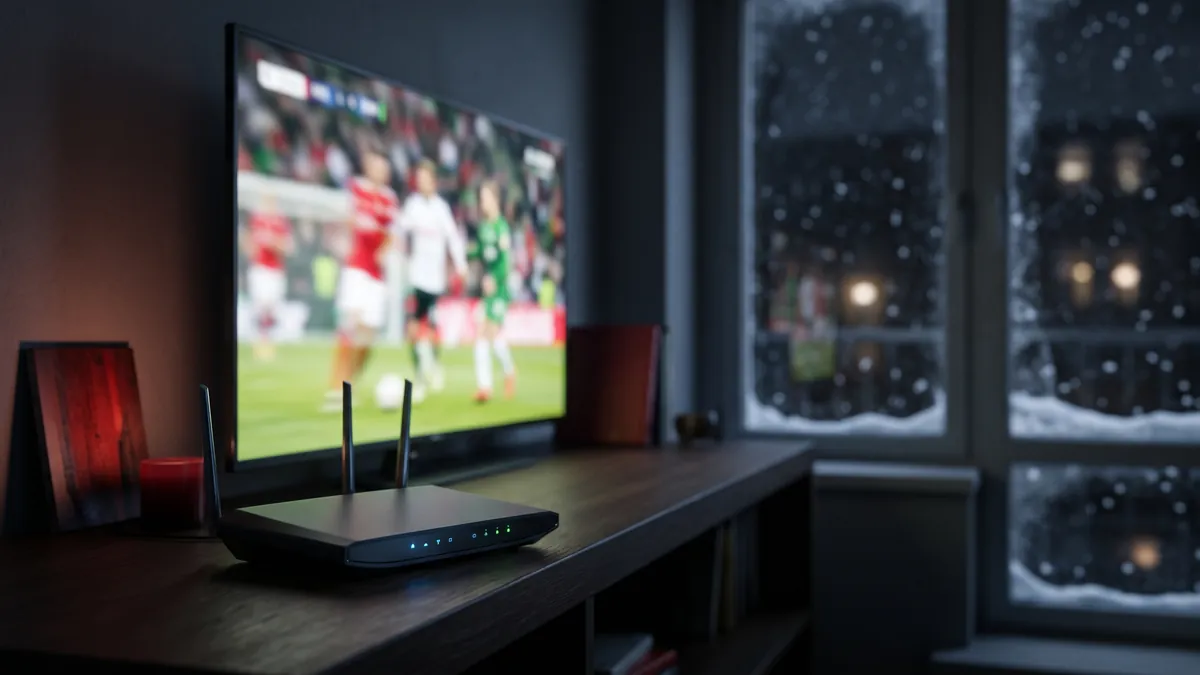
For IPTV, plan for roughly 10 Mbps per HD stream and about 25 Mbps per 4K stream, then add room for everything else using your connection. A stable connection matters more than the headline speed on your bill.
Last updated: November 2026.
Quick answer: speed by use
| What you watch | Suggested minimum per stream | Comfortable target |
|---|---|---|
| SD (standard definition) | 3 to 5 Mbps | 5 Mbps |
| HD (720p to 1080p) | 5 to 10 Mbps | 10 Mbps |
| 4K | 15 to 25 Mbps | 25 Mbps or more |
These are practical guides, not guarantees. Streams differ, and a provider may use more or less data for the same quality. Treat them as the speed your connection should deliver reliably at the time you watch, not the peak speed in a test.
How to calculate what your home needs
- Count the screens that will play at the same time.
- Multiply by the per-stream figure for the quality you watch.
- Add 10 to 20 Mbps for phones, laptops, gaming and video calls running at the same time.
- Compare the total with what your connection delivers in the evening, not in the morning.
Example: a family of four
Two HD streams (2 × 10 Mbps) plus one 4K stream in the living room (25 Mbps) plus everyday browsing and calls (about 15 Mbps) comes to about 55 Mbps. A plan advertised at 50 Mbps would be tight. A plan of 100 Mbps or more gives breathing room. The CRTC has set a national target of 50 Mbps download and 10 Mbps upload for Canadian homes, which comfortably covers one or two HD streams.
Example: a single viewer
One HD stream needs about 10 Mbps. Most Canadian cable and fibre plans exceed that easily. If you still see buffering, the cause is usually Wi-Fi coverage or the device, not the plan.
Why buffering happens on a fast plan
Wi-Fi distance and walls
Wi-Fi speed drops quickly with distance and through walls, floors and appliances. A TV in a basement can see a fraction of the speed measured next to the router.
Busy evening hours
Neighbourhood networks are busiest in the evening. A connection that tests well at noon can slow down at 8 pm, exactly when live sport is on.
Too many devices at once
Game downloads, cloud backups and video calls compete with your stream. Pause large downloads during important games.
An old or overloaded streaming device
Older sticks and boxes can struggle with large channel lists or high-quality streams, even on a fast network. Restarting helps, and a newer device can make a big difference.
The stream itself
If one channel buffers while others play smoothly, the issue is that stream, not your home network.
Wired vs Wi-Fi
| Ethernet cable | Wi-Fi 5 GHz | Wi-Fi 2.4 GHz | |
|---|---|---|---|
| Speed | Highest, consistent | Good near the router | Lower, more interference |
| Range | Limited by cable length | Medium | Longer |
| Best for | Main TV, live sport | Rooms near the router | Far rooms, light use |
If your TV or box has an Ethernet port, use it. If running a cable is not possible, a mesh Wi-Fi system or a powerline adapter can help reach distant rooms.
How to test your speed properly
- Run the test on the device you watch on, not on your phone next to the router.
- Test in the evening, when you usually watch.
- Run it three times and use the lowest result.
- Pause other downloads and streams during the test.
Ten ways to reduce buffering
- Use an Ethernet cable for the main TV.
- Move the router higher and away from walls and appliances.
- Switch to the 5 GHz Wi-Fi band when close to the router.
- Restart the router and the streaming device once a week.
- Close apps running in the background on the streaming device.
- Pause big downloads during live events.
- Keep the player app updated.
- Try a different player app to rule out the app.
- Lower the stream quality for distant rooms.
- Contact support if one channel keeps failing.
Upload speed and IPTV
Watching IPTV mainly uses download speed. Upload speed matters if other people in the home are on video calls or uploading files at the same time, because a saturated upload can slow everything down. Most Canadian plans provide enough upload for normal use.
Data caps
Many Canadian internet plans are unlimited, but some still have monthly data caps. HD streaming can use a few gigabytes per hour, and 4K uses much more. If your plan has a cap, check your usage in your provider account before streaming heavily.
Choosing a plan for IPTV
Pick a TiviPlay plan for the number of screens that play at the same time. See the pricing page for 1, 2 and 3 device plans, and read what is IPTV if you are new.
Fibre, cable, DSL and wireless home internet
Most Canadian homes connect through fibre, cable or DSL, and a growing number use fixed wireless or satellite in rural areas. Fibre usually offers the most consistent speeds in the evening and very low delay, which suits live sport. Cable plans offer high download speeds but can slow when many neighbours are online at once. DSL depends heavily on the distance from the local exchange and may only suit one HD stream. Fixed wireless and satellite connections can work for IPTV, but speeds vary with weather and network load, so test carefully before committing to a long plan.
Latency and jitter: the hidden factors
Speed is not the only number that matters. Latency is the delay before data arrives, and jitter is how much that delay changes from moment to moment. High jitter makes streams stutter even when the average speed looks fine. Many speed test tools show latency and jitter alongside download speed. Lower and steadier numbers mean smoother live TV. A wired connection reduces both.
Router placement checklist
- Place the router in a central, open spot, not inside a cabinet or behind the TV.
- Keep it off the floor and away from microwaves, cordless phones and large metal objects.
- Point external antennas vertically.
- If the TV is two floors away, consider a mesh system with a node near the TV.
- Reboot the router after firmware updates.
Rural Canada and IPTV
Rural households often have lower speeds and data caps. If your connection delivers 10 to 15 Mbps in the evening, one HD stream is realistic, but two screens at once may struggle. Choose a 1 device plan, lower the stream quality in the player app if possible, and avoid heavy downloads during viewing. Check your data allowance regularly, because live sport and long movie sessions add up quickly.
What to tell support if you still buffer
Send the result of an evening speed test taken on the TV device, whether you use Wi-Fi or Ethernet, the device model and the name of the app. With that information, support can tell you quickly whether the cause is the network, the device or a particular stream.
Key takeaways
- About 10 Mbps per HD stream and 25 Mbps per 4K stream is a good rule of thumb.
- Evening performance matters more than daytime speed tests.
- Ethernet beats Wi-Fi for live sport.
- Most buffering on fast plans comes from Wi-Fi coverage, busy hours or older devices.
Not sure whether your connection is good enough? Run an evening speed test on your TV device and send us the result on WhatsApp before you order. We will tell you honestly which plan makes sense.
Frequently asked questions
How many Mbps do I need for IPTV?
About 10 Mbps per HD stream and about 25 Mbps per 4K stream, plus room for other devices.
Is 50 Mbps enough for IPTV?
Usually yes for one or two HD streams. Several 4K streams plus other use may need more.
Why does IPTV buffer on fast internet?
Weak Wi-Fi, busy evening hours, other downloads or an older streaming device are the usual causes.
Is Ethernet better than Wi-Fi for IPTV?
Yes. A wired connection is more stable, which matters most for live sport.
Does IPTV use a lot of data?
HD streams can use a few gigabytes per hour and 4K much more. Check your plan if it has a data cap.
Next step
See the TiviPlay plans in Canadian dollars, check compatible devices or follow our setup guide. Questions? Message us on WhatsApp, 24/7.