

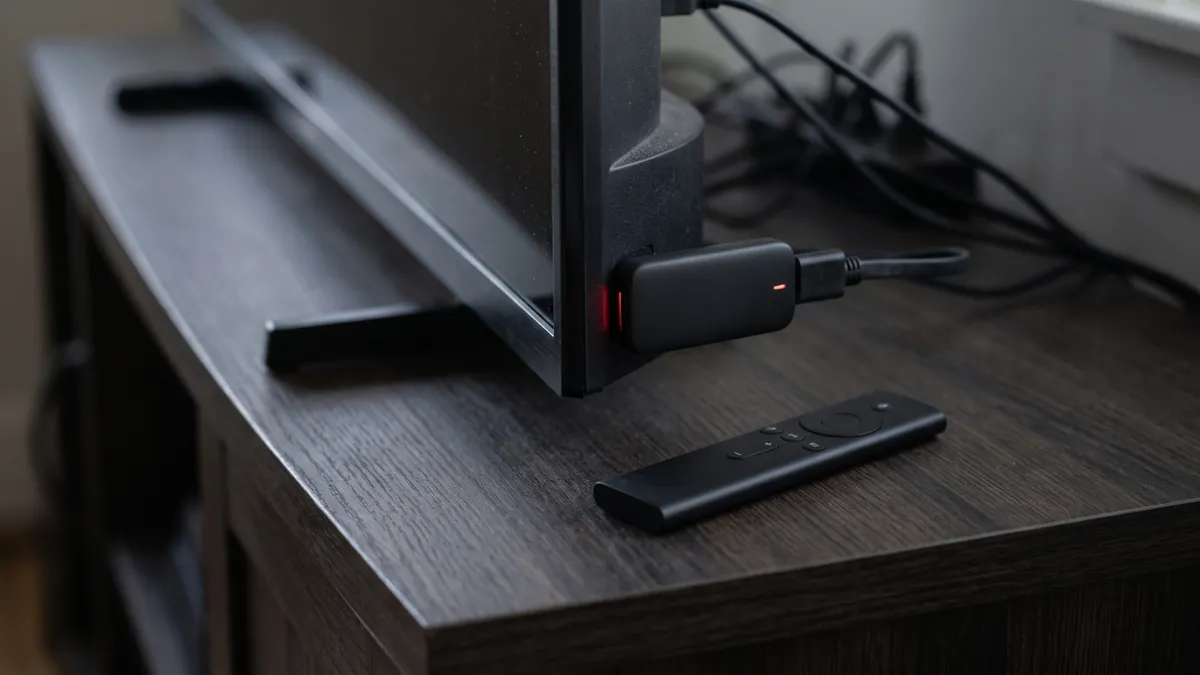
To watch IPTV on an Amazon Firestick, install an IPTV player app, add the login from your provider, and connect the stick to strong Wi-Fi or Ethernet. Setup takes about ten minutes the first time.
Last updated: November 2026.
What you need
- An Amazon Fire TV Stick or Fire TV device plugged into your TV and power
- A stable internet connection, ideally 5 GHz Wi-Fi or Ethernet
- An IPTV player app
- Your login details from your provider (Xtream Codes or an M3U link)
Which Firestick works best?
Any current Fire TV Stick can run IPTV player apps. Newer models with more memory and faster processors handle large channel lists and guides more smoothly, and 4K models are needed if you want to watch in 4K on a 4K TV. If your stick is several years old and feels slow, an upgrade can solve many buffering and freezing complaints.
Step 1: Prepare the Firestick
- Plug the stick into an HDMI port on the TV and use the supplied power adapter, not a TV USB port.
- Connect to Wi-Fi in Settings, Network. Choose the 5 GHz network if you have one.
- Check for system updates in Settings, My Fire TV, About.
- Restart the stick once after updating.
Step 2: Install a player app
Search the Amazon Appstore for an IPTV player such as IPTV Smarters Pro or TiviMate. If the app you want is listed, install it directly. Availability changes over time and by region.
If the app is not in the Appstore
Some users install the official app file from the developer’s website. This needs a downloader app and permission for that app to install unknown apps:
- Go to Settings, My Fire TV, About and select the device name seven times to show Developer options.
- Open Developer options and allow your downloader app to install unknown apps.
- Open the downloader app, enter the official address from the app developer and install.
- Delete the downloaded file afterwards to free space.
Only use official developer sources. Unknown files can contain malware. You can switch the permission off again when you are done.
Step 3: Add your login
Open the player app and choose the login type your provider sent. For Xtream Codes, enter the server URL, username and password. For M3U, paste the playlist link. Detailed steps: IPTV Smarters Pro setup and TiviMate setup guide.
Step 4: Test and tidy up
- Open a few channels you watch often and check playback.
- Open the guide and make sure programmes show. If not, see the EPG guide.
- Add favourites so they appear at the top.
- Lock adult categories if children use the TV.
Make the Firestick run faster
- Uninstall apps you do not use.
- Clear the cache of the player app in Settings, Applications.
- Turn off automatic app previews and video autoplay in settings where available.
- Restart the stick weekly.
- Use an Ethernet adapter for the stick if your Wi-Fi is weak.
Common mistakes
| Mistake | What happens | Fix |
|---|---|---|
| Powering from the TV USB port | Random restarts and freezes | Use the wall adapter |
| Copying the login with a space | Login fails | Re-type carefully |
| Weak 2.4 GHz Wi-Fi far from the router | Buffering | Use 5 GHz or Ethernet |
| Several player apps logged in at once | Device limit reached | Use one app per screen |
| Never restarting | Slow menus | Restart weekly |
Remote tips
Hold the Home button for quick settings and sleep. Many player apps let you long-press a channel to add it to favourites. Voice search works for apps but not usually for channels inside IPTV apps.
Internet speed for Firestick IPTV
Plan for about 10 Mbps per HD stream. See how much internet speed IPTV needs.
Before you start: a five-minute checklist
Most Firestick problems come from small things that are easy to fix before you install anything. Check that the stick is plugged directly into the TV, not through an old HDMI switch or soundbar that may limit the signal. Make sure the TV input is set to the right HDMI port and that the remote is paired. If the stick has been unused for a while, let it finish any pending system updates first, because a large update in the background can make the first app installs feel slow. Finally, note your Wi-Fi name and password, and keep the login details from your provider open on your phone so you can copy them carefully.
Setting up for a household
If several people use the same TV, think about how they will find their channels. Create a short favourites list for the shows everyone watches, and keep category lists tidy by hiding groups nobody uses. If children use the TV, set a parental PIN in the player app before you hand over the remote. Many families also find it useful to set the stick to go to sleep after a period of inactivity, so it does not keep streaming in the background when everyone has gone to bed.
If you have more than one TV, each Firestick counts as a separate device. Make sure your plan covers the number of screens that will be watching at the same time. TiviPlay offers plans for 1, 2 and 3 devices on the pricing page.
Firestick vs Smart TV apps
| Firestick | Built-in Smart TV apps | |
|---|---|---|
| App choice | Wide, including popular IPTV players | Depends on TV brand, model and country |
| Updates | Regular Fire OS updates | Depends on the TV maker |
| Speed | Good on newer sticks | Varies; older TVs can be slow |
| Portability | Easy to move to another TV | Fixed to that TV |
| Cost | Low one-off purchase | Already built in |
If your TV app store does not offer the player you want, a Firestick is often the easiest fix. It is also handy for travel: you can take it to a cottage or hotel TV and log in with the same details, as long as you stay within your device limit.
Troubleshooting by symptom
The app will not open or closes immediately
Restart the stick by unplugging it for thirty seconds. If the problem continues, clear the app cache in Settings, Applications, Manage installed applications. As a last step, uninstall and reinstall the app, then log in again.
Channels load but freeze after a few seconds
This usually points to the network. Move the router closer, switch to 5 GHz or use an Ethernet adapter. Test another channel: if only one freezes, the stream itself is the cause.
Sound but no picture, or the reverse
Try the alternative player setting inside the app, which changes how video is decoded. Also check the HDMI cable and TV input settings.
The remote stops responding inside the app
Replace the batteries, then re-pair the remote by holding the Home button for ten seconds. Some apps also need you to press Back once to return focus to the menu.
Key takeaways
- Any current Fire TV Stick can run IPTV player apps.
- Install from the Amazon Appstore when available; otherwise only use official developer files.
- Use 5 GHz Wi-Fi or Ethernet and the wall power adapter for stable playback.
- Each Firestick playing at the same time counts as one device in your plan.
If you are still unsure where to begin, start with our setup guide and message us on WhatsApp with your Firestick model. We can tell you which app to start with and walk you through the first login step by step.
Frequently asked questions
Can I watch IPTV on a Firestick?
Yes. Install an IPTV player app and add the login from your provider.
Which app is best for Firestick IPTV?
Many people use TiviMate or IPTV Smarters Pro. Try one and keep the one you like.
Why does my Firestick buffer?
Weak Wi-Fi, an old stick, too many background apps or a busy network are the usual causes.
Is sideloading safe?
Only when you install official files from the app developer. Avoid unknown sources.
Do I need a VPN on a Firestick for IPTV?
No. A VPN is a separate privacy tool and is not required to use a player app.
Next step
See the TiviPlay plans in Canadian dollars, check compatible devices or follow our setup guide. Questions? Message us on WhatsApp, 24/7.