

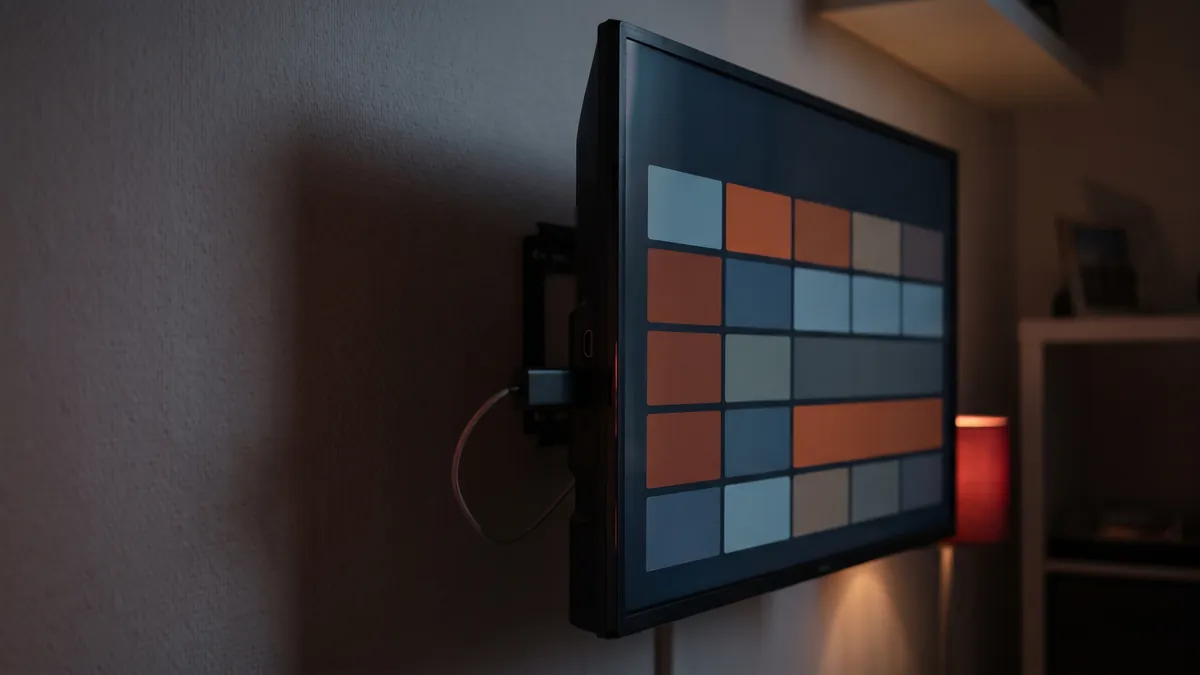
To set up TiviMate, install it on an Android-based device, choose Add playlist, select Xtream Codes or M3U, enter the details from your provider and wait for the channels and guide to load.
Last updated: November 2026.
What TiviMate is
TiviMate is an IPTV player for Android-based devices, including Android TV, Google TV and Amazon Fire TV. It does not include channels. You connect it to the playlist or login supplied by your provider. It has a free version, and a paid Premium upgrade adds extra features. Check the app for current details. TiviMate is an independent app, not owned by TiviPlay.
What you need
- An Android TV, Google TV or Fire TV device (it is not an iPhone or iPad app)
- Login details or an M3U link from your provider
- A stable internet connection
Step-by-step setup
- Install TiviMate from the app store on your device and open it.
- Choose Add playlist.
- Pick the type that matches what you received: Xtream Codes or M3U playlist.
- Enter the server address, username and password, or paste the M3U link.
- Name the playlist and confirm. The app downloads the channel list.
- Wait for the programme guide (EPG) to finish loading before judging it. This can take a few minutes.
Tips for a smoother experience
- Use Ethernet or a strong Wi-Fi signal near your device.
- Restart the app after the first full load if the guide looks empty.
- Group your favourite channels so you can reach them quickly.
- Keep the app updated.
Troubleshooting
- Login fails: re-enter the details, check for spaces and make sure the server address is complete.
- Guide empty or wrong: see our IPTV EPG guide.
- Buffering: check your speed against our internet speed guide.
New to IPTV? Start with what is IPTV. Using a Fire TV device? Read IPTV on Firestick.
Install TiviMate on Fire TV, Android TV and Google TV
Android TV and Google TV
Open Google Play on the TV, search for TiviMate, install it and open it from the apps row.
Amazon Fire TV and Firestick
Search the Amazon Appstore first. If it is not listed in your region, some people install the official app file with a downloader app after allowing apps from unknown sources in Settings, My Fire TV, Developer options. Only use the official developer source. See IPTV on Firestick: setup basics.
Free vs Premium
| Free version | Premium | |
|---|---|---|
| Add a playlist | Yes | Yes |
| Programme guide | Yes | Yes |
| Extra features | Limited | More customisation and convenience features |
| Cost | Free | Paid; check the app for the current price |
Start with the free version. Upgrade only if you need a specific Premium feature.
Organise your channels
- Mark favourites so they appear in a short list.
- Hide categories you never watch to keep the list clean.
- Reorder groups so your most-watched channels are at the top.
Fix common TiviMate problems
| Problem | Try this |
|---|---|
| Playlist will not load | Re-enter details, check spaces and the full server address |
| Guide empty | Wait for the first update, then refresh. See EPG guide |
| Wrong programme times | Set device time and time zone to automatic |
| Buffering | Use Ethernet or move closer to the router; see speed guide |
Tips for families
Create one playlist profile for the household, lock categories you do not want children to see, and keep favourites short so everyone finds their channels quickly. If two people watch on different TVs at once, make sure your plan covers two devices. See plans.
Why people choose TiviMate
TiviMate is designed around the television remote rather than a touch screen. The interface feels like a cable box: you press up and down to change channel, open the guide with a button, and scroll through hours of programming without lag on most current streaming devices. For people moving from cable to IPTV, that familiarity is often the biggest reason to choose it. It also handles large channel lists well, which matters when a service offers many categories.
The trade-off is platform support. TiviMate only runs on Android-based devices, so it is not an option on iPhone, iPad or many built-in Smart TV systems. If your household uses a mix of devices, you may want IPTV Smarters Pro on the phones and TiviMate on the TV. See our comparison in best IPTV player apps.
Setting up the programme guide
After adding a playlist, TiviMate downloads guide data. With Xtream Codes details this usually happens automatically. With an M3U playlist you may need to add a separate guide link in the playlist settings if your provider gives one. Let the first update finish before judging the guide, because the initial download can take several minutes on a large playlist. If programme times look wrong, check that your device time zone is correct for your province.
Useful settings to change on day one
- Start-up channel: choose the last watched channel so the TV opens where you left off.
- Guide update interval: set it to update daily so programme information stays fresh.
- Channel numbering: turn on numbers if you like typing channel numbers with the remote.
- Parental control: set a PIN and lock categories you do not want children to see.
- Appearance: adjust font size if you sit far from the screen.
Using TiviMate on several TVs
You can install TiviMate on more than one device and add the same playlist. Each TV that plays at the same time counts as a device, so make sure your plan matches. If you add the same login to several apps on the same TV, close the ones you do not use to avoid reaching your limit by accident.
Keeping TiviMate healthy
Update the app when the store offers a new version, restart the device once a week and clear the app cache if menus become slow. If a recent update causes problems, restart the device before reinstalling, because many issues disappear after a clean restart.
TiviMate vs IPTV Smarters Pro
Both apps play the same subscription. The difference is in how they feel to use. TiviMate is built for the TV and puts the guide at the centre, which suits people who mostly watch live channels with a remote. IPTV Smarters Pro is available on more platforms and splits content into clear Live TV, Movies and Series sections, which suits households with phones and tablets as well as TVs. Many people install both, try them for a week and keep the one they enjoy more. Your login works in either app, so switching costs nothing.
A first-week routine
On day one, add the playlist and let the guide load fully. On day two, set favourites and hide unused categories. Over the next few evenings, watch at your normal times and note any channel that buffers or any guide entry that looks wrong. By the end of the week you will know whether the problem, if any, is your network, the app or a specific channel, and you can contact support with clear details. This simple routine solves most issues before they become frustrating.
Key takeaways
- TiviMate runs on Android TV, Google TV and Fire TV, not on iPhone or iPad.
- It needs a playlist or Xtream login from your provider; it has no channels of its own.
- Let the guide finish loading before judging it, and check your time zone.
- Each TV playing at the same time counts toward your device limit.
Frequently asked questions
Is TiviMate available on iPhone?
TiviMate is built for Android-based devices such as Android TV, Google TV and Fire TV. It is not an iPhone or iPad app.
Does TiviMate come with channels?
No. You add the playlist or login from your provider.
Do I need TiviMate Premium?
The free version covers basic use. Premium adds extra features. Check the app for what is included.
Xtream Codes or M3U in TiviMate?
Use the type your provider sent. See M3U vs Xtream Codes.
Next step
Ready to start watching? See the TiviPlay plans in Canadian dollars, check compatible devices, or follow our setup guide. Questions? Message us on WhatsApp any time, 24/7.